
You can choose to either export all contacts from the database or specific contacts from a smart list.
- On the left sidebar, click on “Contacts”, “Smart List” tab.
- If you want to export all contacts, click on “All” under the “Smart List” tab. If you want to export a Smart List, click on any of the Smart List names on the right of “All”.
- Remember that you can always create a custom / new Smart List based on a selection of criteria. More info on creating & managing Smart Lists here.
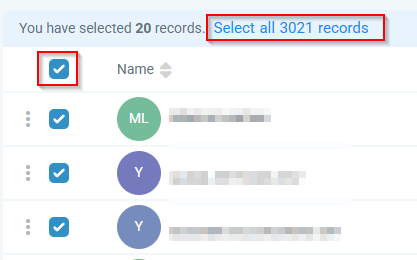
- Click on the checkbox to select all rows. Then click “Select All ## records” to ensure you select everything.
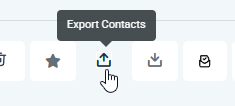
- Then click on the “Export” icon
- You will see a popup. Click Export.
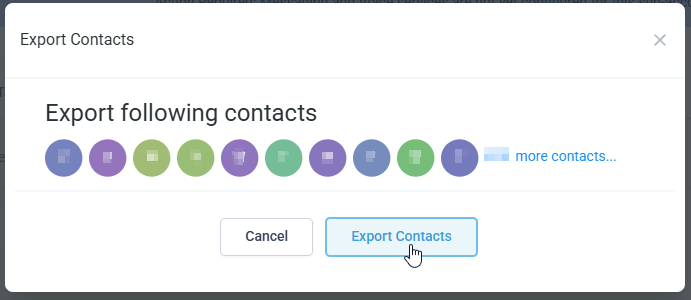
- The browser should be downloading a CSV file.
You can choose to export additional columns.
- On the right side above the table, click on the “Columns” dropdown.
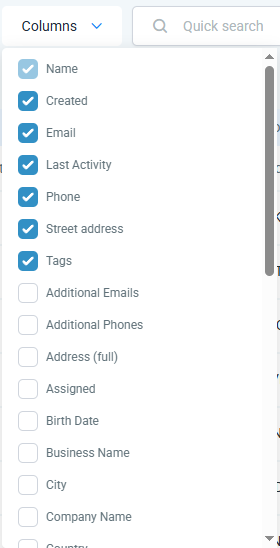
- Choose the desired columns and you will see the table below adjust for your selection.
- Then any exports will also include the columns you select.